Sourcing Bricks on BrickLink
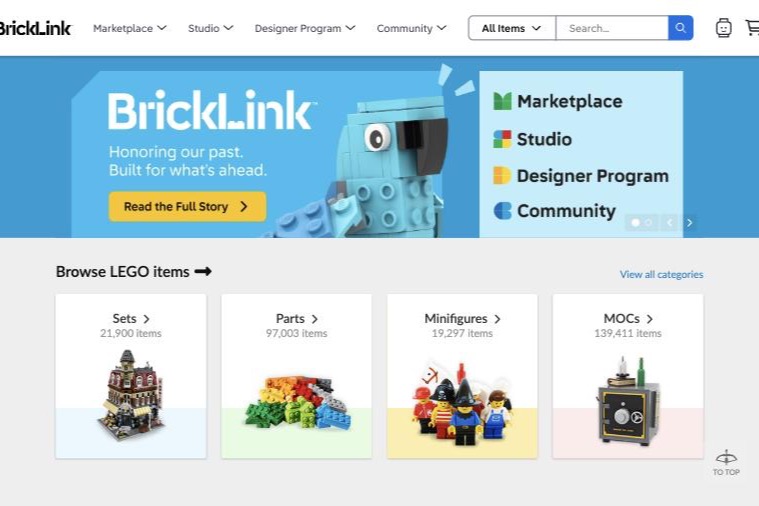
A BEPCO instruction booklet comes without bricks. When you order one, I email you the complete parts list for the model, and you gather the pieces yourself. Most builders do that on BrickLink, the LEGO Group's marketplace of independent sellers: you upload the list once, and BrickLink finds the stores that have what you need. This note walks through it step by step. Give yourself about half an hour the first time.
What you need
- The parts list from your order email. It is a small
.xmlfile in BrickLink's own format. Each entry names a part, a color, and how many you need. - A free LEGO Account. BrickLink sign-in runs through the same account you would use on LEGO.com. You can create one when you sign in.
- A way to pay. Each BrickLink store is an independent seller and sets its own payment options. PayPal is the most widely accepted. Card acceptance varies by store, and each store lists what it takes in its terms.
Step 1: Sign in to BrickLink
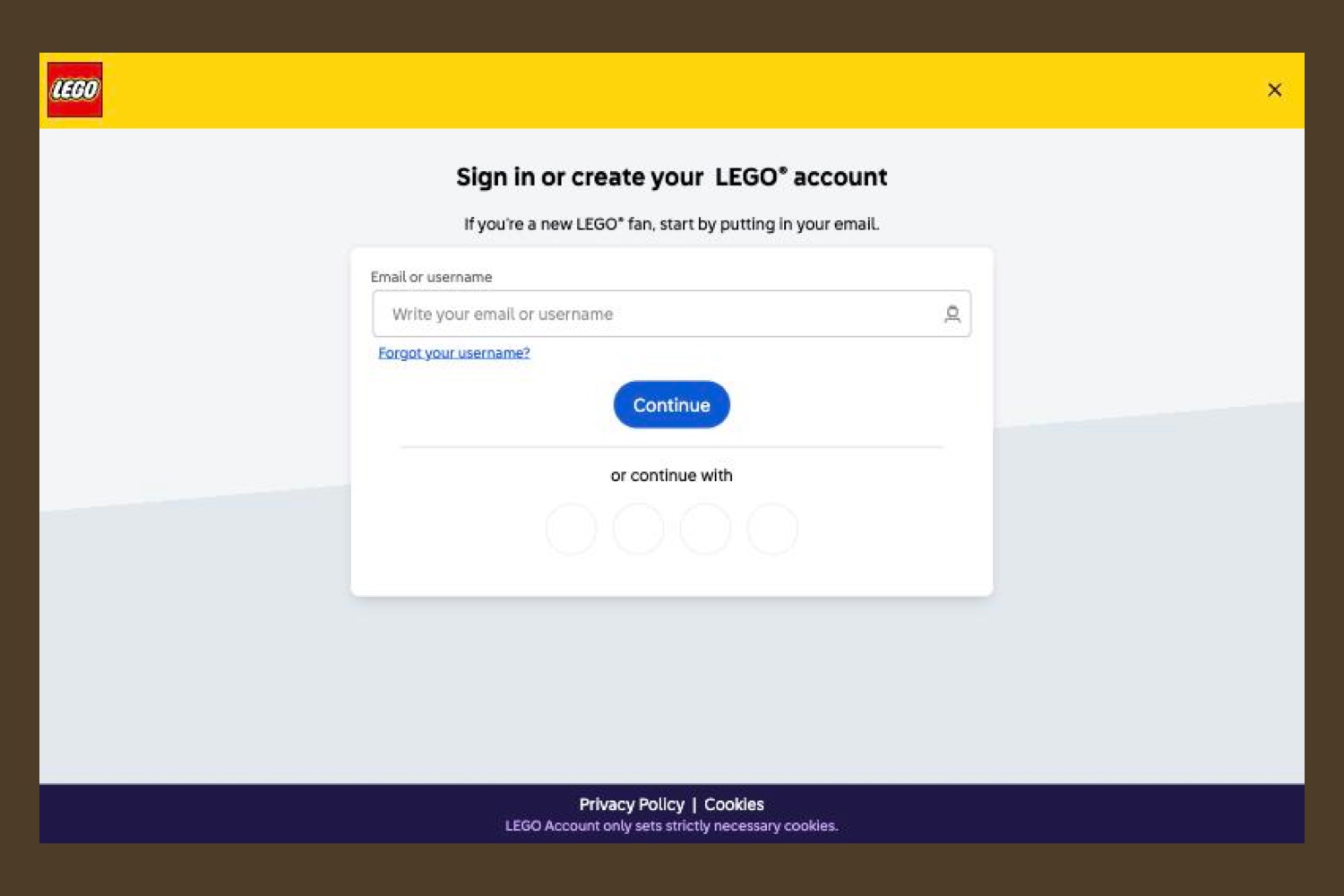
Go to bricklink.com and click the account icon in the top right corner. BrickLink hands you over to a LEGO Account sign-in page. Sign in, or create an account there if you don't have one, and you'll land back on BrickLink.
Step 2: Make a Wanted List
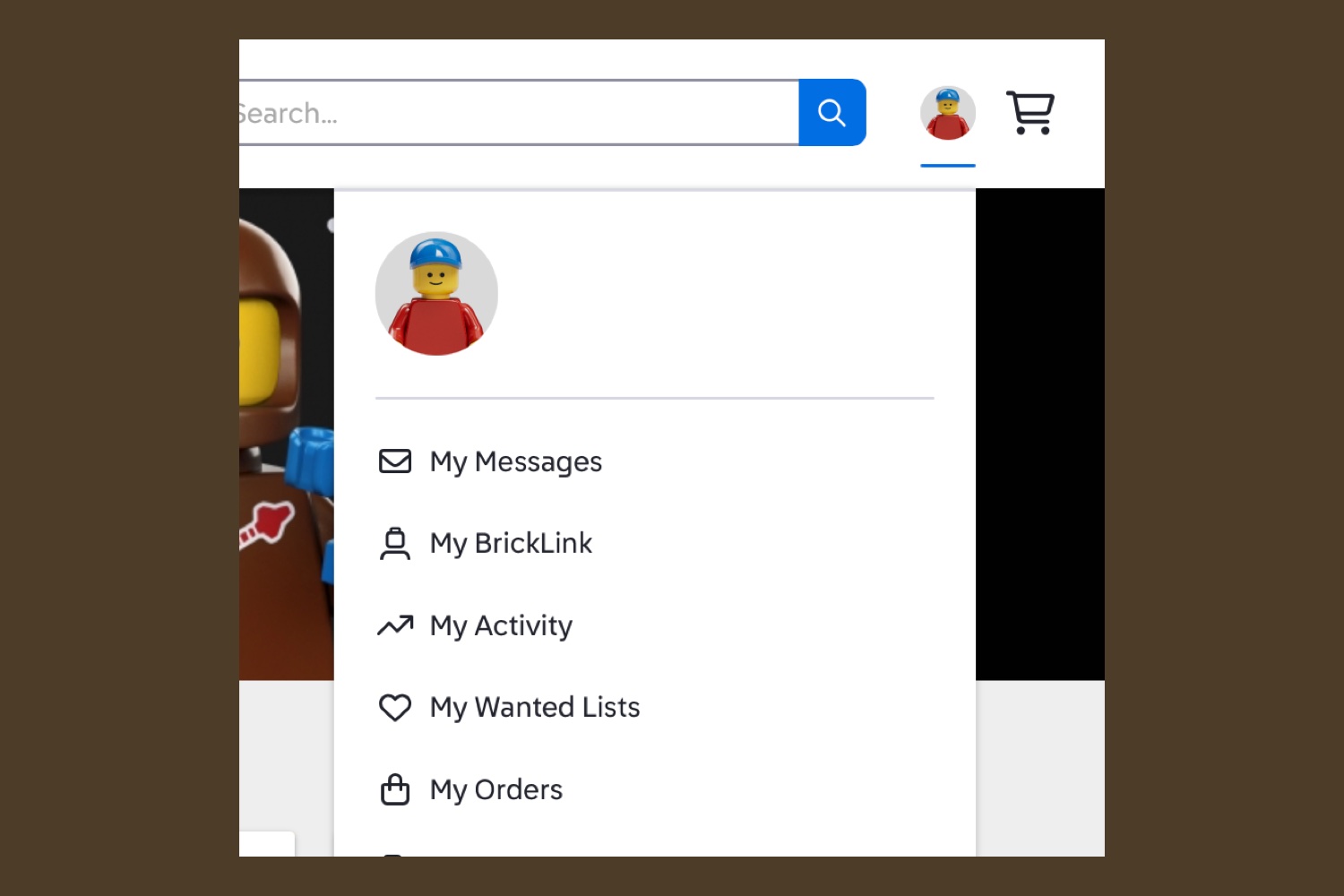
BrickLink calls a shopping list a Wanted List. Open the account menu and choose My Wanted Lists. Click Create New List, name it after the model so you can find it later, and click Create Wanted List.
Step 3: Paste in the parts list
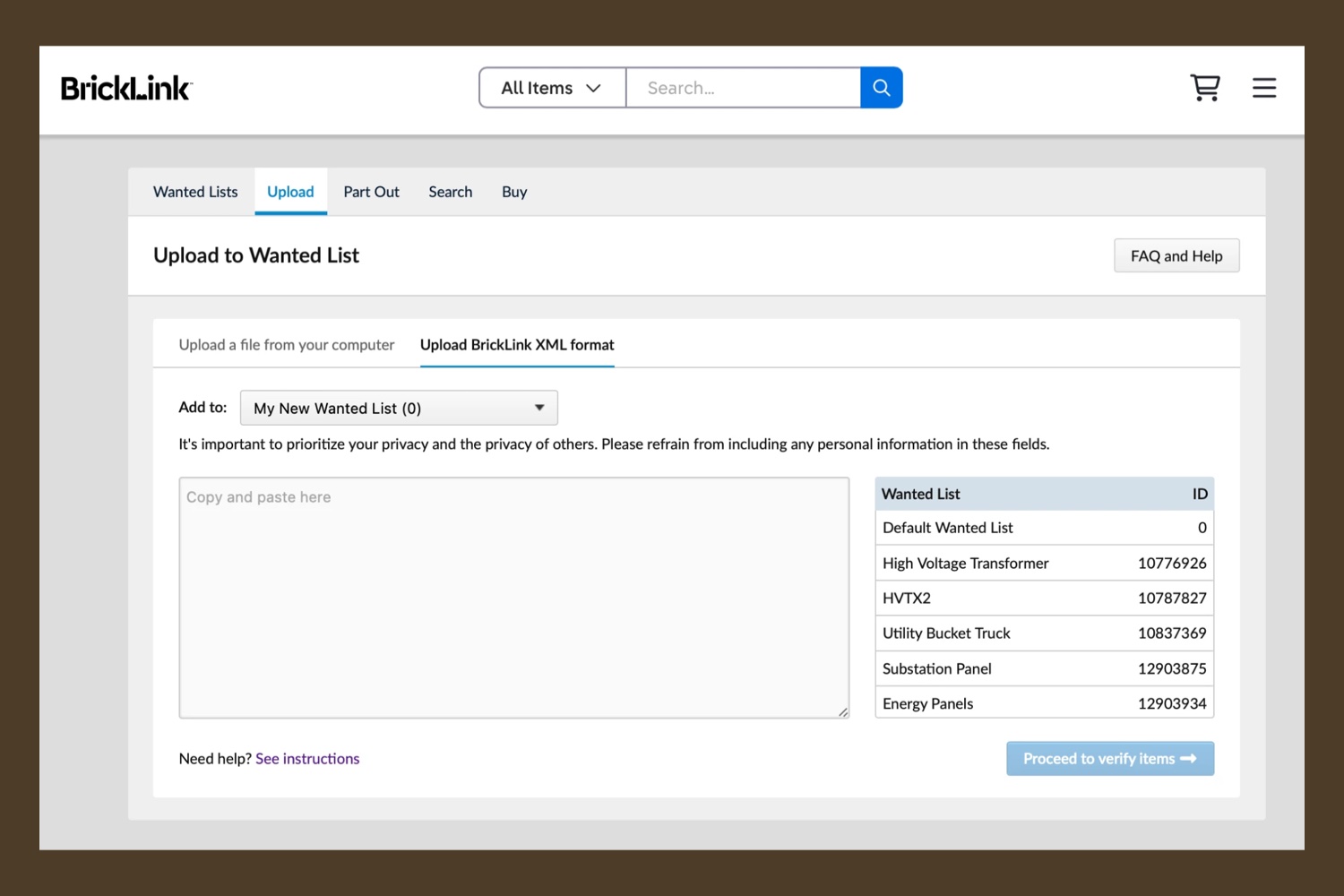
Click the Upload tab, then choose Upload BrickLink XML format. The page takes the list as pasted text rather than as a file, so open the .xml file in a plain text editor (TextEdit on a Mac, Notepad on Windows), select everything, copy it, and paste it into the box.
In the Add to menu, pick the Wanted List you just made, then click Proceed to verify items.
Step 4: Check the list and save it
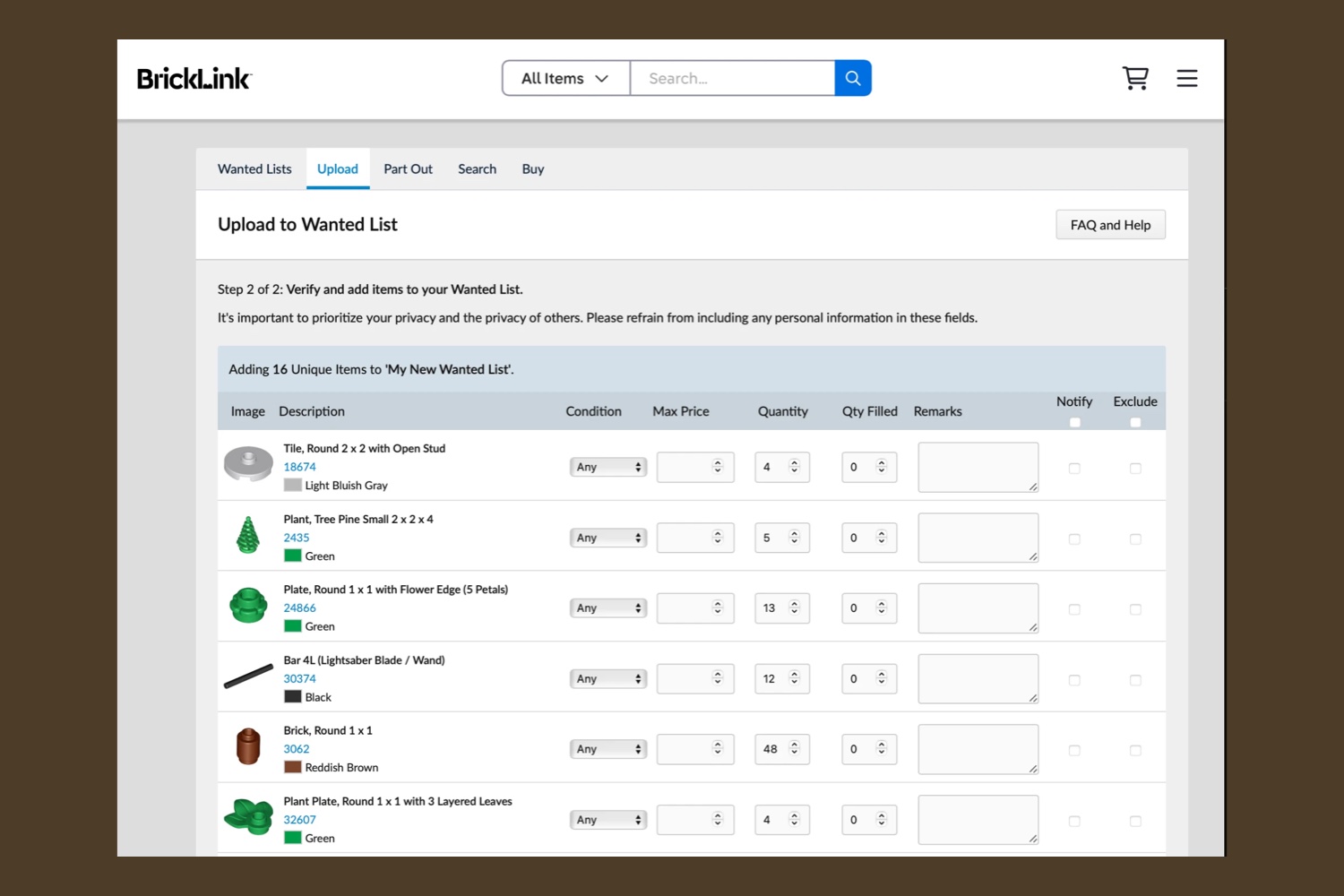
BrickLink now lists every part it read from the file, with a count of unique items at the top. Compare that count with the number of lots in your order email; they should match. This is also the place to take out anything you already own: tick Exclude next to a part, or lower its quantity.
You can set Condition here too. Any is the default. Used parts cost less and build the same model; choose New if you want every piece unused. When the list looks right, scroll to the bottom and click Add to Wanted List.
Step 5: Let BrickLink choose the stores
Few stores carry every part on a list, so BrickLink splits the list across several sellers and works out a good combination. There are two ways to run it.
Easy Buy
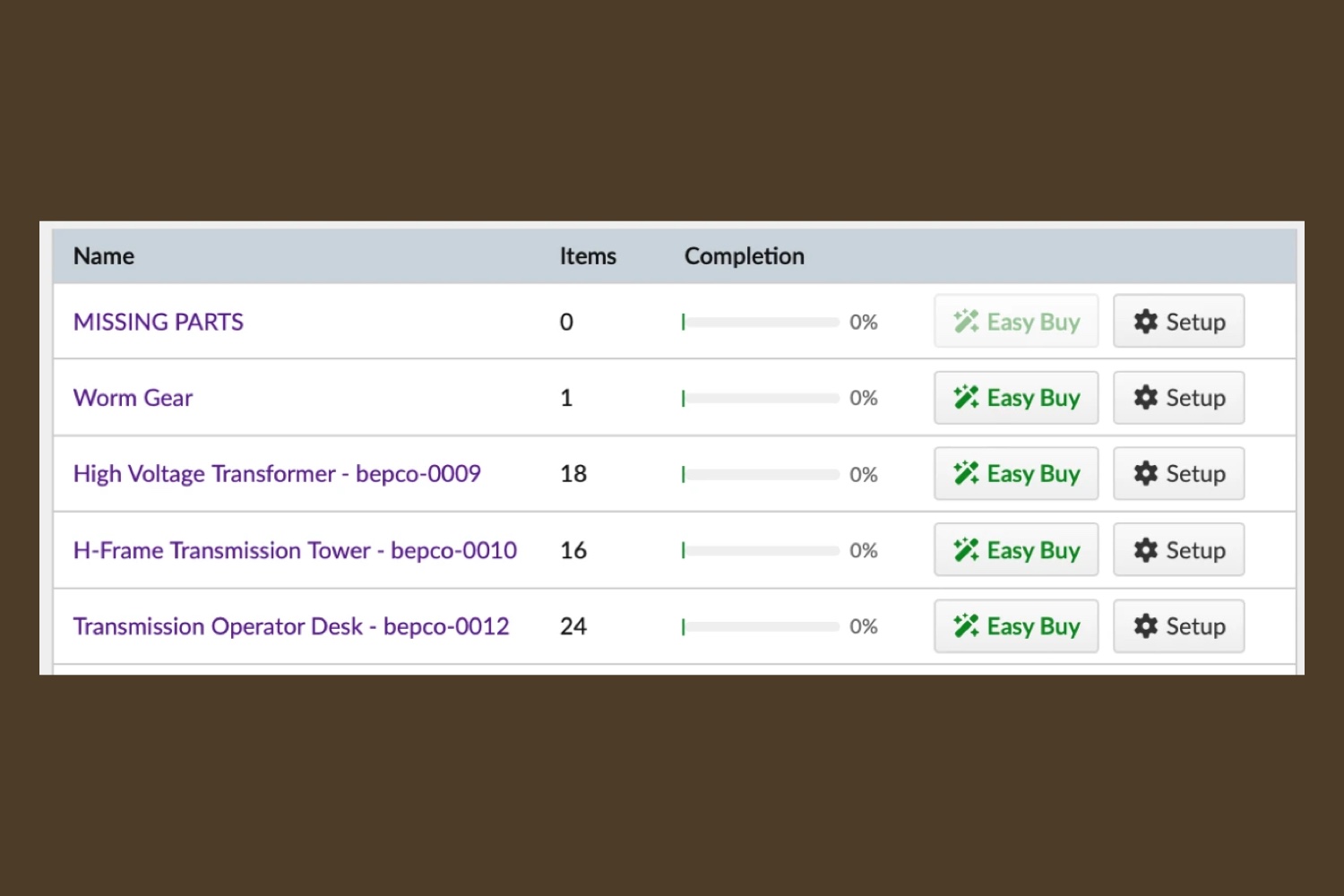
On your My Wanted Lists page, click the green Easy Buy button (it has a small magic wand) next to your list. BrickLink weighs prices and estimated shipping across stores and proposes a set of carts. Check that it found every part, look over the total, and click Create carts.
Filtering first
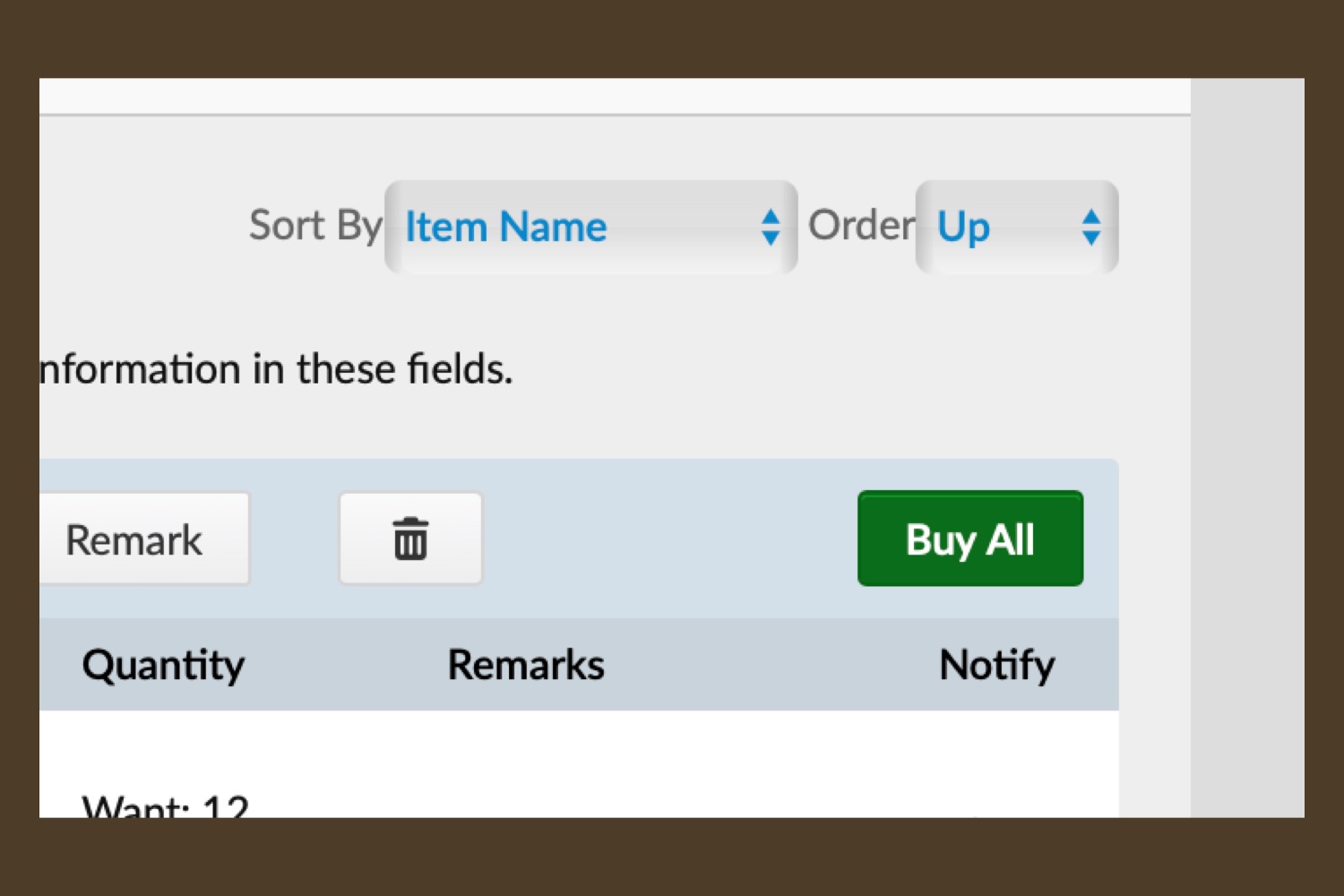
If you'd rather buy only from stores in your own country, which usually keeps shipping down, open your list and click Buy All. In Store Filters, set the store location to your country, and under Exclude tick Stores that do not ship to me. Then click Auto-select. When it finishes, check that all of your parts are assigned (it should read 100%) before you click Create carts.
Step 6: Check out, one store at a time
Each store gets its own cart, and each cart is a separate order with its own shipping charge. Open a cart, click Proceed to checkout, and pay. Repeat for the rest. Before paying, look at each store's shipping cost and minimum order. If a store made the cut for one inexpensive part and charges several dollars to ship it, it may be cheaper to drop that part from the cart and find it at a store you're already using.
Your orders ship separately, so the parts will arrive in several packages.
Step 7: When the packages arrive
Check each package against your list as it comes in. On your Wanted List, the Apply Order button marks the parts from an order as received, which leaves only what's still on its way. If anything is missing or wrong, message the store from that order first. If that doesn't resolve it, BrickLink's help desk can step in.
Reading the parts list
Each entry in the list is a lot: one part number, in one color, with a quantity. The part numbers are BrickLink catalog numbers. Some parts also have alternate numbers for older or newer versions of the same piece, and your list names the version I used.
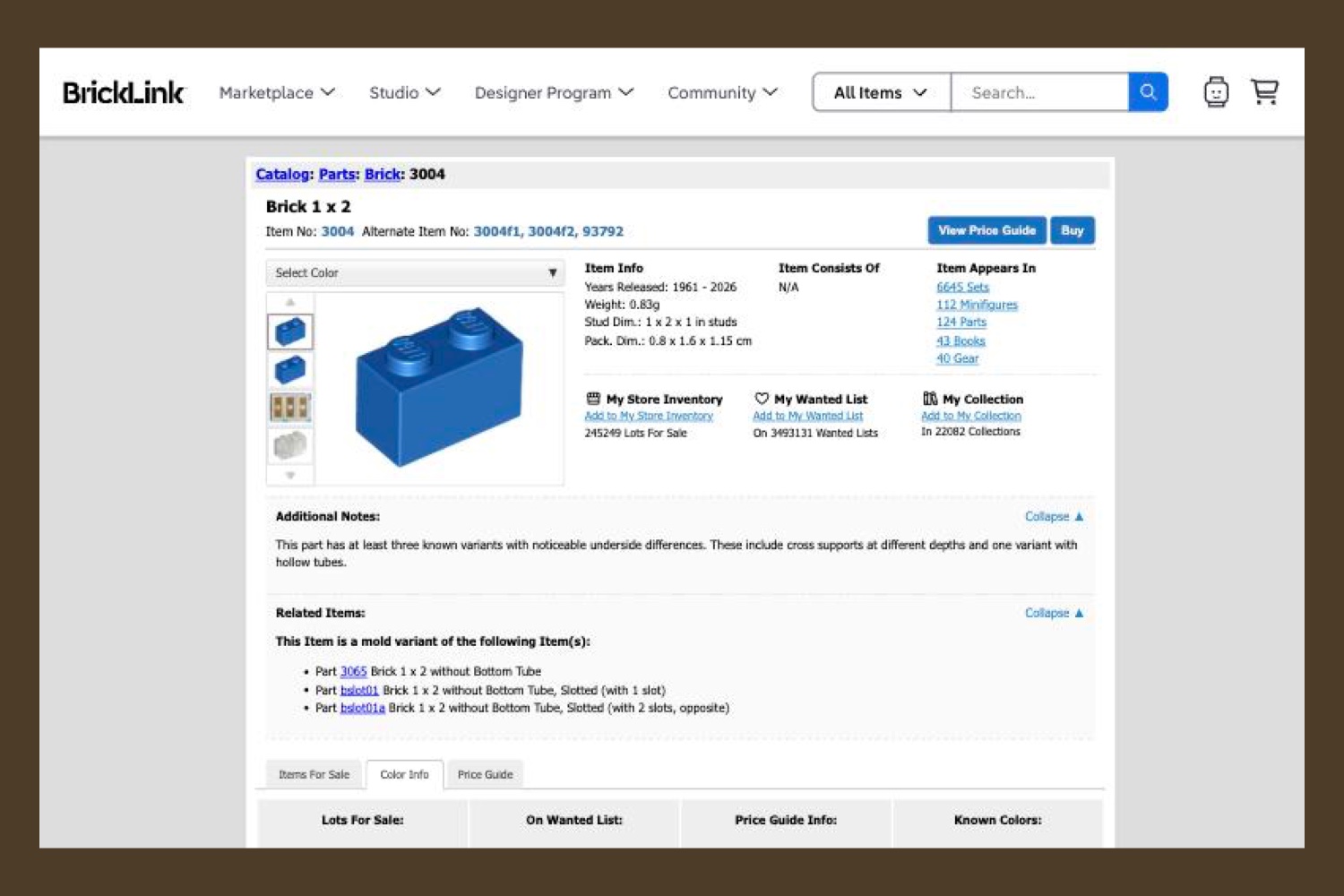
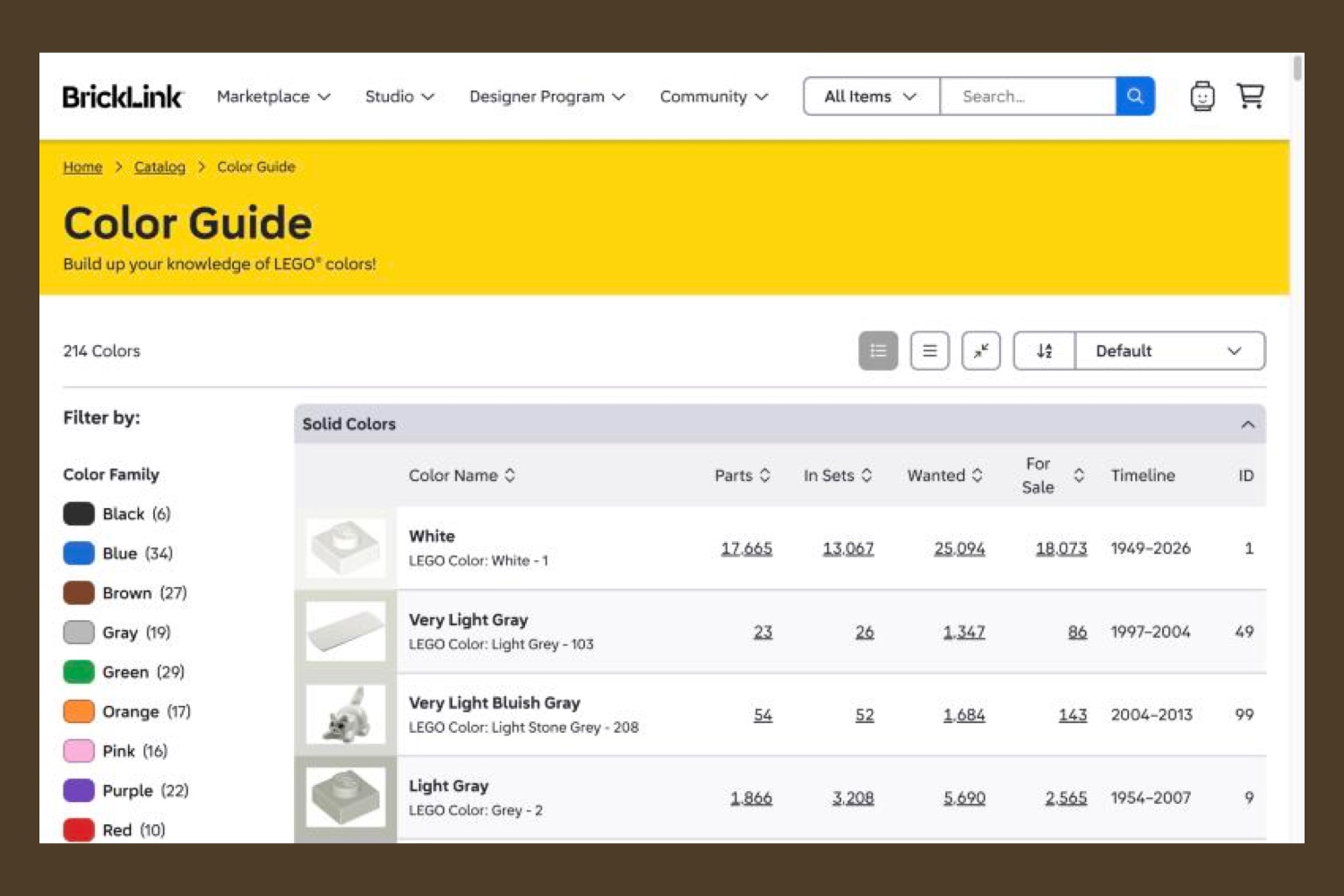
Colors use BrickLink's names, and those don't always match LEGO's own. BrickLink's Very Light Bluish Gray, for example, is LEGO's Light Stone Grey. If a color in your list is unfamiliar, the Color Guide puts the two names side by side.
Other sources
LEGO also sells individual elements through Pick a Brick on LEGO.com. It carries parts from LEGO's current range, so it may not have everything on a list, but it can fill a gap.
If something goes wrong
Order problems, like a short count or a wrong color, belong with the store you bought from, and then with BrickLink if needed. Problems with the parts list itself, like a part that won't upload or a quantity that looks wrong, come to me. Email support@bepco.studio with the model name and I'll sort it out.
Screenshots from BrickLink.com, October 2026.